If you have ever built an event flyer, a LinkedIn banner, or a “thanks for coming” recap post in Canva, this one is for you. As of today, Canva lets you switch off its generative AI tools and see fewer AI-made templates and graphics in its library. For San Antonio businesses and event hosts who want their marketing to look like their real company, that is a small switch with a big upside.
What Canva announced
According to Canva’s own announcement, two new AI Controls are rolling out to everyone on Canva Free and Canva Pro at no extra cost:
- Generative AI Control: one switch that hides Canva’s generative tools, such as Magic Expand, Magic Write, Magic Design, Magic Edit, Dream Lab and image generation in the Canva chatbot. You can turn them back on any time.
- AI-Generated Content Control: an option to see less AI-made content when you browse templates, graphics and other elements, so human-made designs show up first. It does not change designs you already made.
As The Verge and PetaPixel point out, the switch does not remove every AI feature. Background Remover and Magic Grab (which lets you pick up an object and move it) stay on, because they edit what is already in your photo instead of creating something new. Canva also says those two tools will not add an “AI-generated” label to your design’s metadata, while designs that use AI-generated library elements will carry that label. Canva Business, Enterprise, Teams and Education accounts already had admin controls for AI.
The rollout is gradual, so if you do not see the options yet, check back in a few days.
How to turn it off
- Generative tools: Profile, then Settings, then Permissions, and switch off “Enable generative AI features.”
- Fewer AI templates and graphics: Profile, then Your account, then AI personalization, and choose to see less AI-generated content.
Why this matters for your business photos
1. Your real photos stay real
Tools like Magic Expand are handy, but when they widen a headshot or an event photo, the extra background is invented. On a social post that might be fine. On your team page, a speaker announcement, or a sponsor recap, invented details can make a real moment look fake. If you want to be sure nobody on your team “fixes” your photos with generative fill, the new switch makes that easy.
2. AI labels can show up where you do not expect them
Some social platforms read metadata and flag posts as AI-made. Canva says simple edits like removing a background will not trigger that label, but using AI-generated elements can. If your post is about a real event with real people, you probably do not want an AI tag on it. Building your design around your own photos is the simplest way to avoid that.
3. People trust what looks genuine
We have written about how shoppers distrust AI product photos and about the legal risks of AI lookalikes in ads. The same idea applies to small business marketing. A real photo of your team, your venue, or your crowd tells people you are a real company with real customers. A generic AI scene does not.
Tips for using real photos in Canva
- Start with the largest file. Download full-resolution images from your gallery so flyers and banners stay sharp when Canva crops them.
- Ask for a mix of orientations. When we cover an event, a few vertical frames for Stories and a few wide frames with open space for text make design work much easier later.
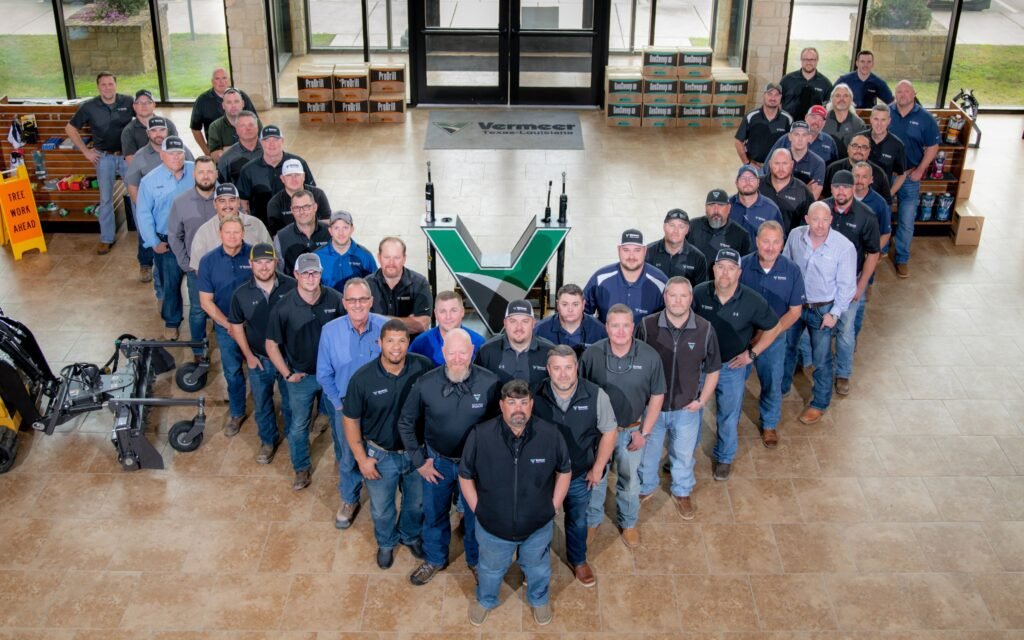
- Leave room for headlines. Wide shots with clean walls, sky or floor, like the team photo above, give you space for a title without covering anyone.
- Keep headshots consistent. Matching backgrounds and lighting across your team make a speaker lineup or staff page look polished without any AI help.
- Use the assistive tools carefully. Background Remover can help with a cutout for a flyer, but check edges around hair and glasses before you publish.
- Credit and permission still matter. Use photos you have the rights to, and get permission from the people in them for marketing use.
About the photo at the top
This is a real company photo we made for a Texas equipment dealer, shot from an upper level so the whole team, their showroom and their logo fit in one frame. The V formation echoes the logo standing in the middle of the room. It was made on a Nikon D850 with a 24-70mm f/2.8; today Grey Bug Photography shoots on the Nikon Z9 and Z8, which we have used since they launched. No generative fill, no invented background, just a good plan and a high vantage point.
The takeaway
Canva’s new AI Controls give you a simple way to keep your designs human-made and your photos authentic. Pair that switch with real headshots and event photos, and your flyers, recaps and social posts will look like your business, not like everyone else’s.
Sources: Canva Newsroom, November 19, 2026; The Verge, November 19, 2026; PetaPixel, November 19, 2026.
Need real photos for your marketing? See our headshot photography and event photography pages, or contact Grey Bug Photography to plan team photos or event coverage in San Antonio or anywhere in Texas.